Searching for Strings
You can search for strings in the syslog. You can use various criteria such as case sensitive, whole words only, and regular expressions (regex).
|
➢
|
To search for a string: |
|
1.
|
On the toolbar, in the search field, click the magnifying  button, and then from the drop-down list, choose any of the following options: button, and then from the drop-down list, choose any of the following options: |
|
●
|
Case Sensitive: Search string is case sensitive. |
|
●
|
Whole Words Only: Searches for the whole string (not parts of it). |
|
●
|
Use Regular Expressions: Searched string is a regex. For example, the regex "(Outgoing|Incoming) SIP" searches for all occurrences of "Outgoing SIP" and "Incoming SIP". |
|
●
|
Unfiltered Completion: If not selected, when you start typing a search string, a drop-down list appears, offering you suggestions of previously typed search strings with the same typed letters, as shown in the following example: |
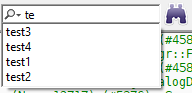
If you select this option (check mark), regardless of what you type, the drop-down list includes all your previous search strings.
|
2.
|
In the search field, enter the string or regex. |
|
3.
|
Click Find Next  icon (or Shift + F3 for find previous). icon (or Shift + F3 for find previous). |